Showing posts with label Tips N Tricks. Show all posts

Thursday, 9 May 2013

How Not To Look Stupid On Twitter

Image (1) with-stupid-mug-2.jpg for post 282644
When the AP Twitter stream was hacked a few weeks agoleading to a massive drop in the equities market, I went off. I found the fact that the AP – a news organization staffed by intelligent people and with a long history of adapting to new media – could be hacked through a phishing attack was unconscionable. It would be like Bank of America being hacked by a group of script kiddies.

Sadly, this happens over and over. Why? Thankfully the folks at the Onion had the foresight to explain what exactly happened when the “Syrian Electronic Army” “hacked” their Twitter stream.

If you run your company’s social media account, read it. The takeaways are here:
Make sure that your users are educated, and that they are suspicious of all links that ask them to log in, regardless of the sender.The email addresses for your twitter accounts should be on a system that is isolated from your organization’s normal email. This will make your Twitter accounts virtually invulnerable to phishing (providing that you’re using unique, strong passwords for every account).All twitter activity should go through an app of some kind, such as HootSuite. Restricting password-based access to your accounts prevents a hacker from taking total ownership, which takes much longer to rectify.

If possible, have a way to reach out to all of your users outside of their organizational email. In the case of the Guardian hack, the SEA posted screenshots of multiple internal security emails, probably from a compromised email address that was overlooked.

I think the third suggestion is the most important – always change your Twitter password on a regular basis and, more important, never ever ever ever click on a link that suggests you should change your Twitter password via the browser. If you must change your Twitter password, either do it through Twitter.com directly or, barring that, email Twitter. If you’re the AP or the ACLU or the Boston Pony And Terrier Lovers Of America Club, I’m sure they’ll help out.

Twitter itself needs to offer dual factor authentication or, at the very least, send you a text when someone changes your password. This is imperative. Twitter is now a medium for corporate communications and for it have the security of a web forum is unconscionable. The person in charge of your Twitter feed should also have a completely separate email address, outside of your domain, and that person should have a process in place to check the URL of the password change page and then only change the password if everything is kosher. At the risk of raising script kiddie, I would say that most “hackers” depend more on the stupidity of their marks and less on their technical skill.

Don’t be stupid.

Wednesday, 8 May 2013

Personal Libraries, Building and Accessing

There’s one at every meeting, the know-it-all. He or she knows the name of every attendee, the agenda backwards and forwards, the subject matter to a tee, and finishes your sentences better than you could. If that leaves you annoyed (i.e. jealous), then it is time to fight back… electronically! After reading so many books and barely remembering any of them, I knew I had to approach learning differently.

Data Normalization for the Human Database

There are numerous methods for packaging and accessing knowledge, from databases to the simple act of highlighting text. My approach is to mercilessly summarize the content, classify it using tags, and build a table of content that links to those tags for quick navigation and knowledge retrieval.
The process is like reverse engineering a book to get back to the author’s original ideas. There is undoubtedly a cost to such minimization in the form of information loss, but in the overall scheme of things, isn't it better to remember the key ideas than forgetting them all?
SEXPAND
The above picture is a snapshot of one of my knowledge documents. The right pane holds the summary and labels while the left pane contains a linkable outline to navigate and bring into focus those labels and corresponding summaries.
This process came together during a technical phone interview for a potential job. After creating many of these documents for work, I decided to apply the same principles in organizing and summarizing personal knowledge. During the interview, I was surprised how quickly and easily I was able to compliment my answers with precise technical terms and rich descriptions with the help of such documents. I did get the job.

Tools

The digital revolution has overwhelmed us with so many organizational tools; there is something for every taste. You probably have heard of Evernote, Livescribe, Mindview, OneNote, etc. These are the big ones and they essentially serve the same goal of organizing information but each use differing approaches. I err towards simplicity and rely on Microsoft Word. This old standard may be low-tech compared to what’s out there today, but it gets the job done.
Part of its attractiveness is the ability to do the same thing many different ways. I like to type my notes and quickly categorize them with the help of labels. The 'Styles' tool coupled with the 'Navigation’ pane are my big guns here. In a nutshell, I summarize the main ideas and classify each with a title. I then transform each title into a linkable label by highlighting it and clicking the ‘Styles’ toolbar at the appropriate level (check your help file for specifics about ‘Styles’ and ‘Navigation’ as they vary from version to version). Main ideas are usually categorized as ‘Heading 1’ and are the second top-most level behind the ‘Title’ style. Sub ideas are categorized as ‘Heading 2’, ‘Heading 3’, etc. Styling something not only applies a graphical style to the text, but more importantly, adds it to the ‘Navigation’ pane.
The ‘Styles’ toolbar
The ‘Navigation’ pane is the document map that displays every label in a hierarchical, tree-based list. It offers expandable/collapsible toggles. For the consumer of these documents, this is the control center to navigate through the document and gain rapid access to the subject matter by simply clicking on the label.
The ‘Navigation’ pane

How

Beyond reading the material, it has to be understood and understood well enough to differentiate key points from fluff. Wordy passages, duplications, examples, anything not applicable to ones needs are all easy targets for the garbage heap. How intuitive you design your outline will determine how useful a tool this will become. It is important to end up with enough summary material to cover the subject but light enough that it works as a memory inducer via minimal clicking and minimal reading. Remember, you may not access this information for a while and need to assume you will not remember any of this when you come back to it. If the top element doesn’t logically guide you down to the next element, your efforts will be wasted. For example, taking a 500 page technical document and reducing it to 20 is ideal but only if the labels flow into each other logically.
Not all material is suited for this type of transformation. Obviously, there has to be a need to revisit this knowledge at least once more in the future, preferably more. Also the material needs to be reducible, if it is highly dense then it may not be worth the effort. You do not what to end up with a one-to-one copy of the original, at that point save yourself the time and buy the eBook version.
A book’s table of content is a good starting point. You can trust the author did his or her due-diligence to break down the subject logically and chronologically. Mark all chapter headings as ‘Heading 1’ with the ‘Style’ tool, and all sub-chapters as ‘Heading x’ (depending on the depth offered by the book’s table of contents). Each label or series of labels should lead to a summary.
Once that is done, customizing the tree structure is very easy. Simply dragging a label up or down will re-order the whole child hierarchy and summary accordingly. A label can easily be upgraded to a higher level or downgraded to a lower one by right-clicking it and selecting ‘Promote’ or ‘Demote’. Entire sections can be deleted directly in the ‘Navigation’ pane by right-clicking on the label and selecting ‘Delete’. Adding additional headings is as easy as right-clicking on the ‘Navigation’ pane and selecting ‘New Heading Before/After’, or typing your label directly in the document and labeling it using the ‘Style’ tool.
If you’re stuck during the summarizing effort, here are some mechanical rules that have helped me: only trim a paragraph after it is read and understood, only allow one resulting sentence per original paragraph, and never use the ‘Cut and Paste’ feature as it leads to bloated summaries and cursory reading of the material. Don’t sweat the small stuff; this should be customized for your intellectual needs, if you aren’t sure, leave it out. Also, if a certain area doesn’t flow, move on and revisit the issue from a ‘Navigation’ pane perspective. Once things are all labeled, it is much easier to judge if something is out of place.
Because everything is collapsible, this method can handle large amounts of information.

Retrieval

This is what it's all about. If the summarizing is well done, finding the right label in the ‘Navigation’ pane and drilling down to its summary will be a cinch. If it is done really, really well, it can be used in a real-time setting (such as at meetings or over the phone). In theory, you should be able to collapse all levels to the top most headers (Heading 1) and effortlessly drill down, in a fluid and logical manner towards your summary.
This doesn’t need to end at the document level; related documents can all be saved in the same folder. Also, tools such as Microsoft OneNote allow you to import multiple documents under a common tab making their collective content searchable as a group from a single location.

Conclusion

Microsoft Word isn’t the focus here as most applications offer similar organizational features. Also, the methodology is just one of the many ways to store and catalog information, the important idea here is to get in the habit of summarizing personal knowledge when encountered so it isn’t lost. I just wish I had started doing this much, much sooner.

Monday, 6 May 2013

22 Facebook PR Secrets Every Community Manager Should Know

facebook-pr-secretsIs Facebook blue the new black for community managers? Social dashboards indicate Facebook marketing fashion changes by the season.
In order to stay ahead of the competition, you might have to download a book or two, attend a webinar or five, and stay on a regular diet that includes a healthy dose of the online marketing conference circuit.
You may also turn to trusted experts, the ones who spend their days and nights tracking, testing, experimenting to find out the best colors, times, lengths, accessories, apps, and more to find this season’s Facebook community manager dos and don’ts.
Two of the latest online marketing business books uncovered some Facebook fashion forward thinking designed with community managers in mind.
complete-social-media-community-managers-guide-cover“The Complete Social Media Community Manager’s Guide” by Marty Weintraub and Lauren Litwinka along with “The Science of Marketing” by Dan Zarrella offer latest top shelf insights, data, and tips when it comes to how a brand can rank in authenticity and pull some publicity out of its Facebook Page.
Today’s community manager can double as a magazine editor by day and DJ by night, spinning content to match the mood, audience, and atmosphere of the daily Facebook newsfeed.

Use the 50/30/20 Rule

Weintraub and Litwinka’s spin on Facebook content calls for 50/30/20 rule.
1. 50 percent news: Include a custom blend of third party, non-competitive content from sites such as AllTop.com and Buzzfeed.com industry
2. 30 percent personality: Highlight a sparkle of strategic personalization and personality with real time journalism that can only happen on your Facebook Page.
3. 20 percent business: After you’ve given away all the friendship bracelets, it is time for business and put on the most tasteful type of branded, self promotional content.

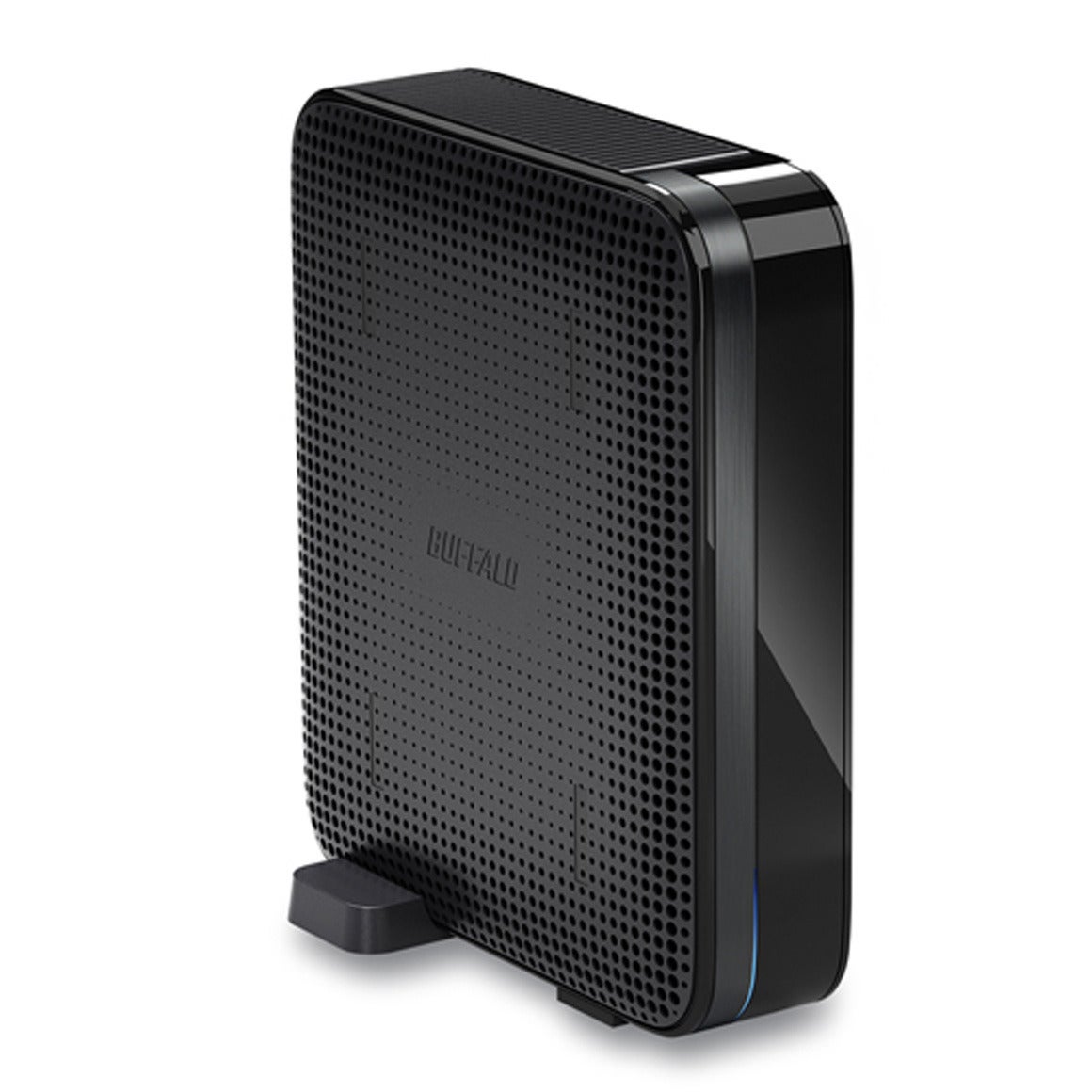
Upgrade your home network with a media-streaming, backup-ready NAS box

If your home network lacks a NAS box, you’re missing out on two counts: First, network-attached storage (NAS) is the easiest way to back up connected PCs. Second—and more enjoyably—a NAS box can store your media libraries and stream files to any PC or networked audio device in your house (examples include devices in the AirPlayNuVo, and Sonos product ecosystems). You can also stream your favorite movies and digital photos to your smart TV (or to your dumb TV, if you have a streaming box or home-theater PC connected to it). Better NAS boxes make remote access possible, so you can access your stuff from—and stream your media to—any device anywhere you have Internet access.
You needn’t pay big bucks for an expensive multibay model designed for small businesses, either. Would you buy a Lamborghini strictly for driving to the corner store? Barring a spectacularly successful PowerBall encounter—probably not. Follow the same principle when shopping for a NAS box. One caveat: Though single-bay NAS boxes are cost effective, they provide no data redundancy. If you store anything on them that you can’t afford to lose or can’t re-create, back them up.

A call for simple, $200 NAS contenders

With frugality and practicality in in mind, we put out a call for reasonably priced ($200 or less) NAS boxes that provide at least 1TB of storage, support remote access via the Web (ideally with mobile app support), and can act as both iTunes and DLNA-certified media servers. Four vendors stepped up to the plate: Buffalo Technology with its LinkStation Live; LaCie with its CloudBox; Seagate with its Central; and Western Digital with its My Book Live.
The hardware configurations proved to be surprisingly similar: Each box uses a 3.5-inch mechanical hard drive, a gigabit ethernet interface, and an external AC adapter; and each is about the size of a medium-format trade paperback. However, each manufacturer added widely different features and amenities on top of the hardware. You'll find the nitty-gritty details at the end of this article.

Buffalo LinkStation Live

Buffalo’s LinkStation Live ($140) is a capable media streamer with the strongest feature set of the four boxes we looked at. Unfortunately, it fell off the pace in copying files, its UI was rather slow to respond, and configuring many of its features—including remote access—proved to be less than intuitive.
Buffalo Technology's LinkStation Live is packed with features, but it's not the fastest performer.
The 2TB LinkStation Live delivers shared folders, user accounts, workgroup and domain support, AFP and FTP file sharing, and—of course—iTunes and DLNA-certified media servers. You also get BitTorrent downloading, integratedEye-Fi service (so you can copy photos from your digital camera to your networked storage using Wi-Fi), Flickr integration (so you can automatically upload photos stored in a designated folder on the LinkStation to your Flickr account), NovaBackup (for backing up PCs to the box), an on-board routine to back up the LinkStation’s files to other locations, and remote access via BuffaloNas.com(where you can manage and share files via the Internet).
Like the LaCie CloudBox, the LinkStation Live will automatically open one of your router’s ports for remote access, provided that your router supports UPnP port forwarding. If your router doesn’t, you’ll have to do it yourself. (The LinkStation Live expects to use port 9000.)

How to set up two-factor authentication for Facebook, Google, Microsoft, and more

Two-factor authentication may not be as sexy as the latest Android phone, but the technology is capturing news headlines, and deservedly so. Last week, Microsoft beganrolling out this security tool for its some 700 million Microsoft Account users. TuesdayWired reported Twitter is working on two-factor authentication as well.
It's a security feature that could have stopped hackers at the gate before they seized control of the Associated Press Twitter account, and it's something you should be using to protect your own online accounts, wherever it's available.
So how does two-factor authentication work? In a nutshell, it requires not one but two pieces of privileged information before granting access to an online account.
Let's say you've already set up two-factor authentication for your Google account, and now a hacker halfway around the world is trying to break into your Gmail. He has your email address and even your password, but he doesn't have the second element of the authentication process. In the case of Google accounts, the second element is a unique security code that's sent directly to your cell phone via text messaging.
In essence, two-factor authentication requires something you've committed to memory (your password) and something you have in your pocket (your phone).
If two-factor authentication sounds like kind of a pain, well, it is. Turning on this feature is a really easy way to make life harder for yourself, as you’ll need to spend extra time to prove your identity every time you log into a protected account from a new piece of hardware. Nonetheless, this level of authentication makes it much harder for hackers to seize control of your accounts.
Do you have a Google account and a smartphone? Then you should have two-factor authentication enabled.
Getting started also requires a little legwork on your part. Most major sites and services offer two-factor authentication as an optional security feature, so you need to log into your various accounts and dig around in the security settings to find it.
Google and Facebook have offered two-factor authentication as an optional security measure since 2011. Dropbox started offering it last year, and Apple iCloud got two-factor authentication in March. Microsoft is late to the party but now has it, and Twitter's version of the technology can't come soon enough.
For the sake of brevity I'm going to run down the two-factor set-up process for the Big Three social networks as well as my favorite remote storage services. But you should duplicate this process across every site and service you use that offers two-factor authentication. And if it seems like a lot of different systems to manage, don't worry—there's an app for that.

Five easy steps to going (almost) paperless

It's over between me and my file cabinet. Six drawers full of dead trees. Total weight: a gargantuan 194.7 pounds of paper. I can't think of any less useful way to utilize home office space, especially when most of the contents, once filed, will never be touched again. I’m also gearing up to move, and the thought of packing, unpacking, and refiling all that stuff made me even more eager to end the relationship, pronto.
The innards of my filing cabinets, before the Great Purge of 2013.
My goal wasn’t necessarily to get rid of every scrap of paper (an impossibility in some cases, as I’ll discuss), but at least I wanted to get it all down to a single file cabinet drawer. Here's how I did it, and you can, too.

1. Sift and sort ruthlessly

Sifting through nearly 200 pounds of paperwork is a Herculean task that took me the better part of two full afternoons. If you’re embarking on a similar quest, this first step is easily the most difficult but also the most rewarding part of the process.
Say bye-bye to last decade’s documents.

21 tips for supercharging your cloud storage

Cloud storage isn't just for files and photos. With the right tools and services, you can do much more: organize data, or automate uploads and downloads. Synchronize, of course. Score extra space without paying an extra cent. Run a basic Web site from a cloud service, manage media, or even fax.
Best of all, most of the following cloud secrets have a similar price tag: zero. Read on to learn how to leverage online storage services in ways you never dreamed possible.

ORGANIZE AND AUTOMATE

1. IFTTT is your cloud-data gofer

IFTTT
The amazing trigger service If This Then That was practically designed with cloud storage in mind. Like your own virtual gofer, you can set it to fetch and carry cloud-based data from one service to another. For example, it has a prewritten “recipe” that will automatically upload to SkyDrive any Facebook photos you’ve been tagged in. It has another thatarchives Gmail messages to your Box account. You can even save all your Instagram photos to Dropbox. Of course, those are just the recipes others have created. IFTTT also lets you cook up your own for just about any action/reaction you can imagine.

2. One cloud service to rule them all

It’s not uncommon to have different files spread across different cloud services. The hassle, of course, is finding the file you’re after. Otixo makes this easier by giving you access to Amazon S3, Box, Dropbox, SugarSync, and other services under one roof. You can search across all your accounts, preview and share documents and photos, and even move or copy files from one cloud to another. Otixo costs $4.99 per month, or $47.90 annually.

3. Email attachments to your cloud drive

Typically, when you want to add a file to your cloud account, you must jump through the hoops of uploading it via a browser or a desktop or mobile app. But there’s another way: email. Evernote and SugarSync, for example, assign you a custom email address where you can forward any attachment. Send to Dropbox is a free service that forwards emailed attachments to your eponymous Dropbox folder. And Drv.io (currently in beta) offers a similar capability for Google Drive users.

Leave early on Friday: time-saving PC tips and tricks

What’s the best way to tell an expert PC user apart from a bumbling amateur? The expert doesn’t waste time. Time is money, after all, and there are tons of ways to speed up even the most basic computing tasks.
We’re going to contribute to your expert education with 21 simple things you can do to waste less time while you’re using a PC. Even if one of these tips saves you just five minutes each week, it’ll save you hours over the next year.

1. Tame your email with Inbox Zero
Inbox Zero helps you organize your email.

Email is a core tool, but also a huge time waster. For every second you spend messaging productively, you probably lose five more seconds searching for old emails or fretting over the mass in your inbox. Organize your inbox today, and you’ll save minutes every time you log in.
First, do whatever it takes to empty your inbox, and then try to keep it that way. Among the popular systems for organizing your email, Inbox Zero is straightforward, easy to understand, and a snap to start using.

2. Cut meetings down to size


Less Meeting helps you run meetings more efficiently.

Meetings are a necessary inconvenience, but they don’t have to kill productivity if you make them as zippy as possible. The meeting-minutes service with the strongest emphasis on speed is Less Meeting. It features the standard note-and-minute-keeping features along with a set of timers, helping you cut your meeting off before people start snoozing.

3. Learn Microsoft Office keyboard shortcuts


KeyRocket pops up keyboard shortcuts for the task at hand.

To master any application, your fingers must memorize its hot keys—the keystroke combinations to navigate without the mouse. You probably know most of the basic ones, such as Ctrl-C for copy, but there are tons more in Windows as well as in every desktop app.
Don't sit down and study a hot-key cheat sheet. Instead, try KeyRocket. It runs in the background while you use Word, PowerPoint, or Excel, suggesting shortcuts as you need them. Simple analytics also show how much time you’re saving. The full version costs $30.

The 21 worst tech habits—and how to break them

Worst Tech Habits
You bite your nails. Your house is a sty. You never signal before changing lanes, and when you finally reach your destination, you're 30 minutes late.
We all have bad habits in real life. Why can't technology help cure them? While technology should help us break bad habits, all too often it makes things worse.
Are you guilty of a bad tech habit? Here are 21 of the worst technology-oriented habits, plus potential fixes for all of them. (And we have a bonus at the end, on mending bad email habits.)

1.  Leaving equipment in plain sight

Worst Tech HabitsPHOTOGRAPH BY ROBERT CARDIN
Someone can easily take your gear if you leave it sitting unattended.
The typical gadget isn't stolen by thieves who've done lots of planning. No, most gadget heists are conceived and executed in seconds, and probably be­­cause you left the item unattended. That cozy window corner at the café is great until you need to run back to the counter for a refill. A thief can pop in, grab your device, and be gone. Gadgetry is also commonly snapped up from airport security conveyers (sadly, sometimes by TSA agents themselves) while you’re waiting for your body scan. Your locked car isn’t safe, either. An eager crook will happily smash your window and grab the laptop bag from the passenger seat, even in broad daylight.
Fix: Don’t leave laptops and other gadgets unattended. Yes, that means you must either take them to the bathroom or leave them with someone you trust. At a café, it doesn’t hurt to ask the staff if you can leave something behind the counter for a minute. In any case, skip asking, “Can you watch this for me?” and pointing at your PC across the room.

Sunday, 5 May 2013

How Do I find my blog on Internet?

When we created a blog, one of the main questions we asked ourselves was: Why my blog doesn’t it appear in Google? Or How do I find my blog in search engines?
If your blog is very new, you must allow time for Google and other search engines index it. The recommendation is to keep posting and have patience because it takes time and effort.
How Do I find my blog on Internet? If you can’t find your blog in search engines, start discarding the simple causes, such as make sure you’ve typed the correct URL, or that your blog has not been deleted.
If you’re wondering How do I find my blog? There are some things you can do for free, to help index your blog. Take note of these tips.
•    You can help search engines with Meta-tags, which are a few lines of HTML code that are incorporated into the main page of your blog. These lines tell the search engines that index it, for which terms your blog must be found.
•    If your blog is published with a custom domain, make sure you have entered the correct settings for your blog to appear online.
•    Add your URL to Google at: http://www.google.es/addurl/
•    Add your URL into the Blog Search. Google Blog Search: http://blogsearch.google.com/ping
•    You can also do it in other search engines like Yahoo: https://siteexplorer.search.yahoo.com/submit
•    MSN: http://search.msn.com/docs/submit.aspx
•    Ask: http://submissions.ask.com/ping?sitemap=http://nombredelblog.blogspot.com/rss.xml
•    It’s also useful to register your blog in directories that you can find with a Google search.

Google+ widget lets you embed Photo Spheres on any website

Google widget lets web devs embed photo spheres on any website
One of the biggest highlights of Android's jump to 4.2 was the addition of Photo Sphere, a 360-degree panoramic shooting mode that pans vertically as well as horizontally. It's a neat trick, but the only way to share it was on Google+ or on a device running Android 4.2 or higher. Now, thanks to a new widget that utilizes theGoogle+ Platform API, you can embed an interactive 360-degree slideshow on any website you choose -- so long as your photos are stored on G+ and PicasaWeb. If you're willing to play around with a bit of code, have a peek at the source to get started.

Google Books Downloader


Google has announced the launch of its new service; Google Books. Currently, you can purchase books (U.S. only) or download more than 3 million free books from anywhere in the world using this service.
As announced by Google, the aim of this project is to provide users with their own bookshelf on hand, no matter where they are. Purchased or downloaded books can be read using a desktop browser, as well as through mobile devices based on the Android operating system or iOS. Additionally, the books can be read on any e-reader with Adobe Digital Editions software.
As opposed to the Picasa service which provides an access to photos, the Google Books service does not allow users to download free electronic editions without digital copy protection and use them on other devices. Google Books Downloader is a little software that allows you to save these books in PDF, JPEG or PNG format (note: it supports only the books marked as "full view").

Saturday, 4 May 2013

Ten tips for attracting a following on Twitter


OK, so you’ve been persuaded by all the Twitter hype that the terse messaging service might actually help advance your career, build your reputation, or attract new customers to your business.


But how do you actually get people to “follow’’ you on Twitter? There’s not much incentive to compose useful or witty messages (known as “tweets’’ on the service) if you don’t feel anyone is out there.


I’ve been collecting advice this month from digital media consultants in Boston who have attracted thousands of followers on Twitter, and also some executives at local businesses that have built a respectable following on their own. Here are their 10 key recommendations, relevant to those who are new to Twitter and those who have been dabbling for a while but haven’t yet amassed a substantial audience.

Featured Links